
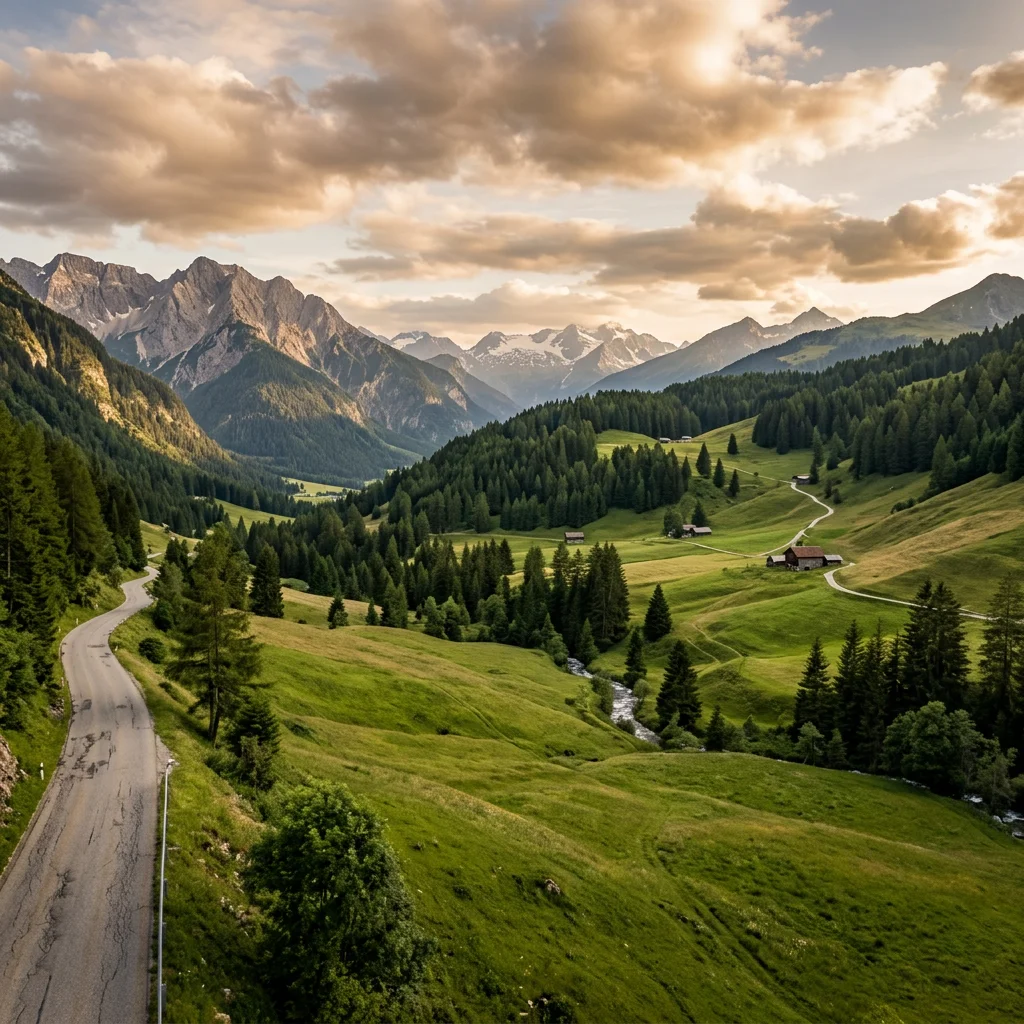
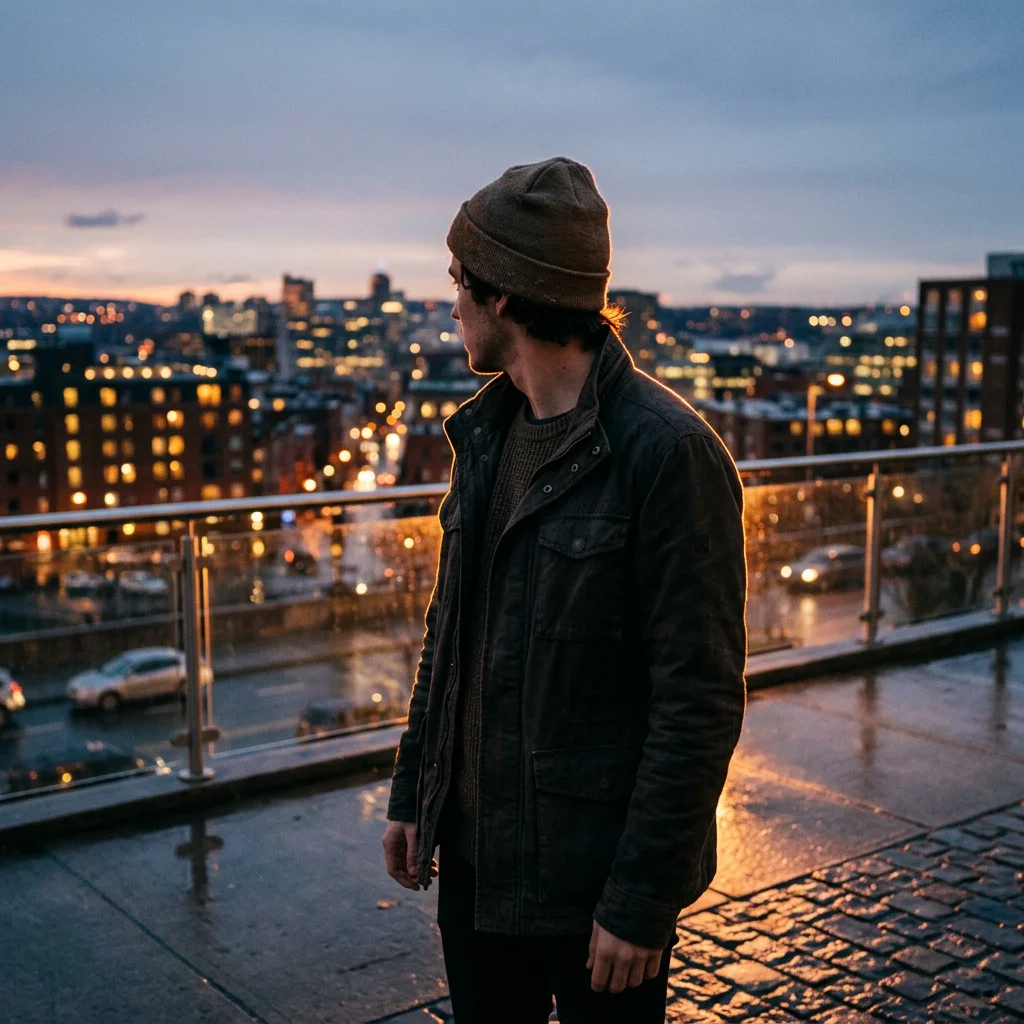
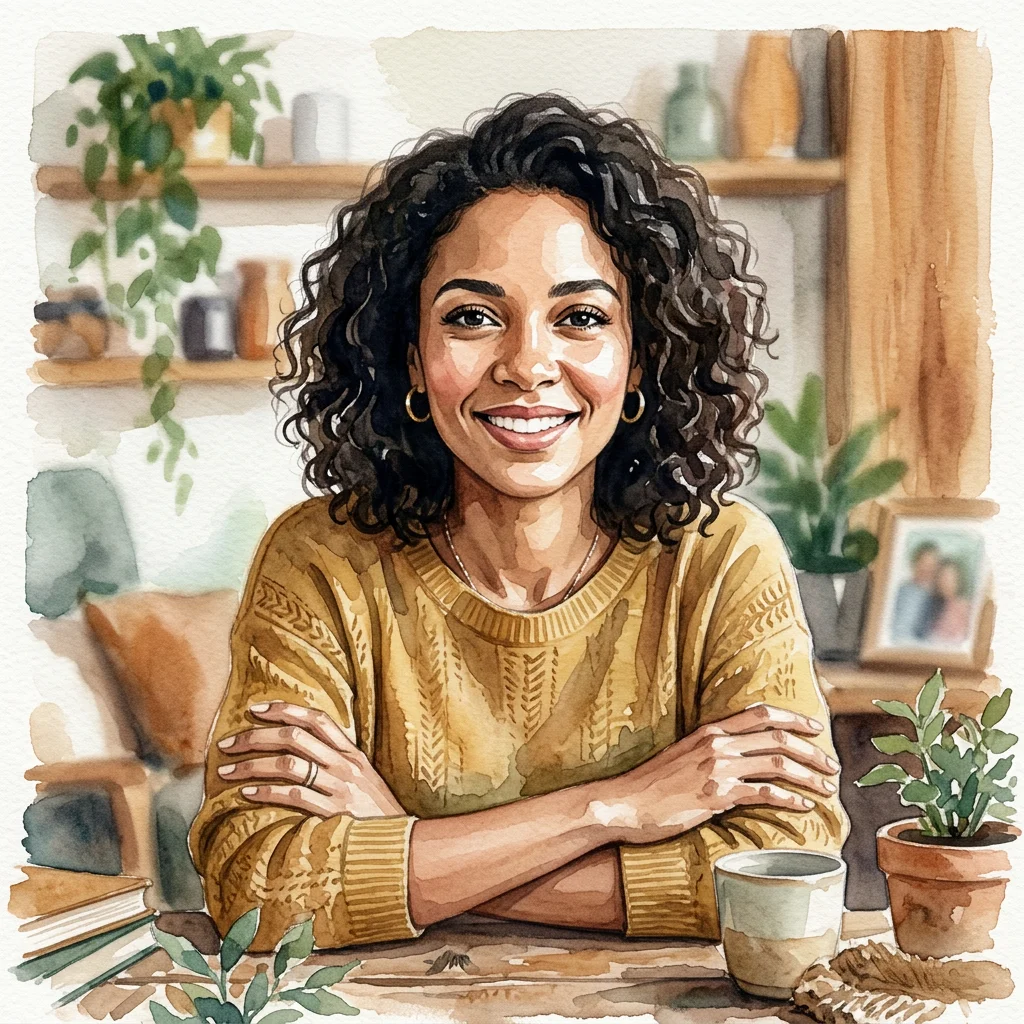
Restyle as a moody evening scene with warm rim light
DisVideoAI Image to Image Generator
Upload an image and describe the change - restyle, refine, or extend it while the composition you approved stays intact.
Image to Image Keeps What Already Works
Starting from an upload means the composition is settled before generation begins. Image to image spends the model's effort on the change you asked for, not on re-inventing your picture.
Restyle without reshooting
Move a photo between looks - watercolor, neon-noir, flat illustration - while subject and framing stay put.
Refine the almost-right result
Keep the generation that is ninety percent there and fix the ten percent, instead of re-rolling from scratch.
Extend and reframe crops
Grow a square into a wide banner or a vertical story without losing the subject to an awkward crop.
Upscale and clean up
Use only the transformation controls shown for the selected model, then review the output against your own original file.
What Teams Use Image to Image For
The common thread: a visual that already exists and a change that should not cost a reshoot.
Seasonal campaign refreshes
Re-skin an approved product photo for a holiday or season while the packshot itself never changes.
Style exploration on real assets
Try five looks on the same photo and pick the direction with evidence, not guesswork.
Avatar and portrait sets
Explore portrait changes from an approved source while checking every result for identity drift and altered details.
Storyboard and concept iteration
Refine a concept frame through rounds of feedback without restarting the composition each time.
Getting Clean Edits From Image to Image
A reference image plus a clear instruction beats either one alone. Four habits keep edits surgical.
Describe the change, not the picture
The model can see your upload. "Make it dusk, warm window light" beats re-describing what is already in frame.
One change per generation
Restyle, then reframe, then clean up - in separate passes. Bundled edits make it impossible to tell what helped.
Keep the original on file
Keep the original file outside the generator and make one requested change per run so you can compare results safely.
Upscale last
Settle the composition and style first; resolution boosts are cheapest when they run once, at the end.
How DisVideoAI Image to Image Works
Four steps from an uploaded image to a refined final asset.
Upload the Reference
Drop in the photo, render, or graphic you want to build on. Clear, well-lit sources edit most cleanly.
Describe the Change
Name the new style, lighting, crop, or cleanup you want - and what must not change.
Generate and Compare
Compare each downloaded result with your own original and keep only outputs that preserve the details that matter.
Review and Download
Download a completed result when available and use a separate editor for final-resolution upscaling or detailed cleanup.
Conditions and limitations
What are the limits of DisVideoAI image to image?
Image-to-image generation is not a pixel-preserving editor. It can reinterpret faces, hands, text, logos, edges, colors and composition, and the page does not provide universal upscaling, cleanup or version history.
The source is guidance, not a lock
Compare every result with your original and reject changes to details that must remain exact.
One clear edit per run
Separate restyling, reframing and cleanup requests so you can identify which instruction caused drift.
Keep your own original
The generator is not the source of truth for version history; retain the uploaded asset and downloaded outputs yourself.
What a run costs and returns
Available in the form today, each priced in the same credits.
Per run, depending on the model and length chosen.
Includes a commercial licence for what you make.
The longest prompt every model on this page accepts.
On a new account, before any plan.
Image to Image FAQ
Common questions about DisVideoAI image to image - references, model-specific transformations, limitations, and credits.
Restyle an Image You Already Like
Upload a photo, describe the change, and keep the composition - free starter credits cover your first edits.
